🌐 Multilingual Support and Translation
All Things API (ATA) provides a robust multilingual documentation system that allows users to create, manage, and publish content in multiple languages—all from a single workspace. This feature is essential for teams supporting global audiences and developers across different regions.
✨ Feature Overview
ATA’s multilingual support includes:
- Multi-language Enablement: Choose from English, Spanish, Arabic, Chinese, and Hindi.
- Live Language Toggle: Instantly switch between available translations.
- Integrated Translation Editor: Translate content side-by-side with the source language.
- Sync Status Indicators: Visual alerts to detect outdated translations.
- One-Click Syncing: Use “Sync Now” to update translations with the latest base content.
- Automatic Change Detection: System flags translation tabs when the base version is edited.
🧭 Step-by-Step Guide to Using Multilingual Support
🔧 Step 1: Enable Multilingual Settings for a Product Version
- Open your documentation Product from the product lista.
- Click the three-dot menu (⋮) on the target version and select “Settings”.
- Go to the “Appearance” tab.
- Under Basic Info > Language, you’ll see a list of supported languages:
- English (default)
- Spanish
- Arabic
- Chinese
- Hindi
- Check the boxes for the languages you wish to enable.
- Click Save to apply your changes.
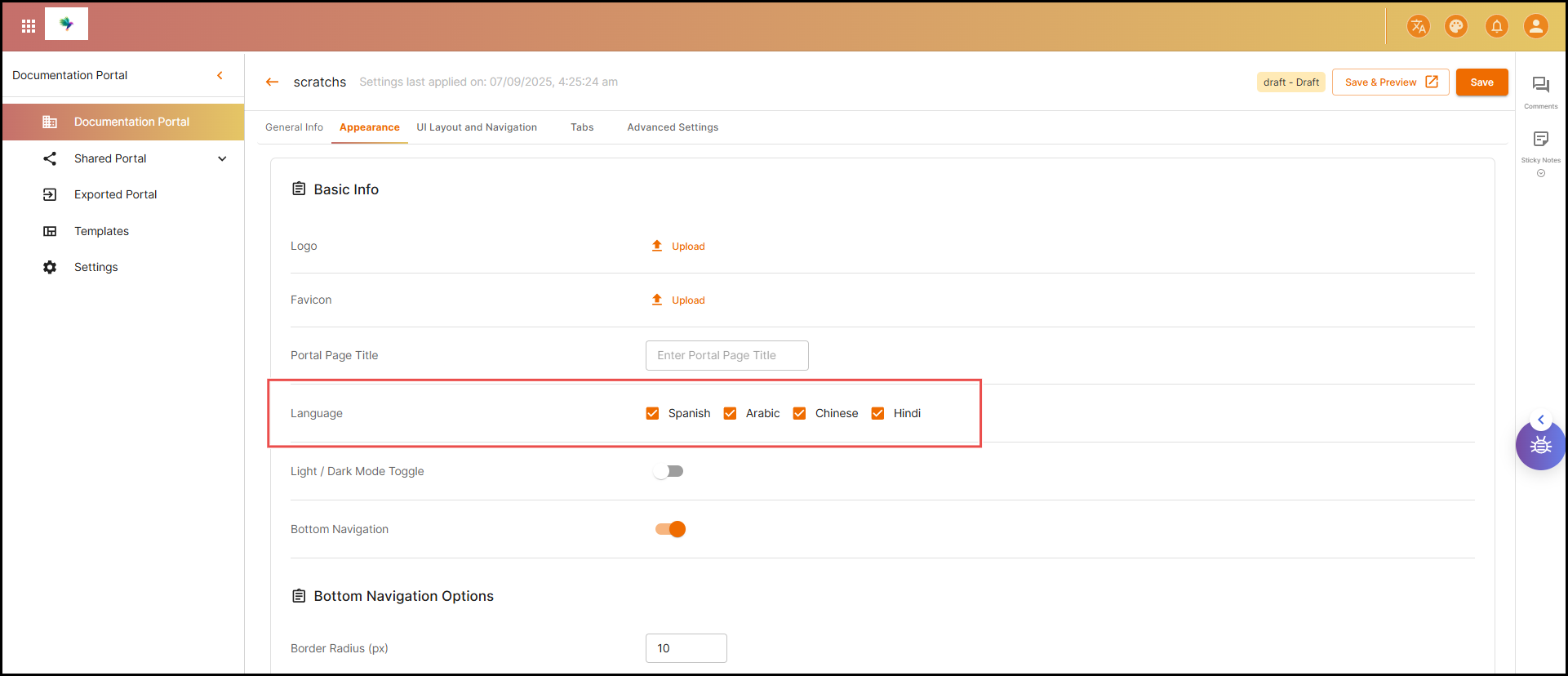
📝 Languages can be enabled during version creation or modified later in version settings.
🌐 Step 2: Switch Between Language Views
- In the documentation viewer/editor, locate the language dropdown at the top.
- Click to select your preferred language.
- The content view will reload and show the translated version (if available).
🌍 End-users can view documentation in the language that suits them best without any reloading or redirection.
✍️ Step 3: Edit and Translate Content in Different Languages
- Open the editor for any documentation page.
- You’ll see language tabs at the top (e.g., English, Arabic, Spanish).
- Click on a language tab to edit that specific version.
- The editor provides:
- Source content preview (usually English)
- Direct editing interface for the translated text
- Side-by-side view for reference
👨💻 This structure helps translators maintain accuracy and context during localization.
🚦 Step 4: Understand and Use Sync Indicators
Each translation tab will show one of two indicators:
- 🟢 Green Indicator: The translation is in sync with the base language.
- 🟡 Yellow Indicator: The translation is out-of-sync due to updates in the source content.
🔔 These alerts ensure translators know when updates are needed to maintain consistency.
🔁 Step 5: Sync Translations Using “Sync Now”
- If a language tab is out-of-sync, a “Sync Now” button appears.
- Clicking it will:
- Pull the latest English/base content
- Overwrite the existing translation with the new version
- You can now re-translate the content in the updated tab.
⚠️ Warning: Syncing will overwrite any unsaved translation work. Ensure changes are saved before syncing.
📌 Examples
✅ Example 1: Enabling Arabic and Spanish
You have English documentation for a FinTech API and want to add Arabic and Spanish versions:
- Go to Version Settings > Appearance.
- Under Languages, check Arabic and Spanish.
- When viewing or editing any page, you’ll now see three tabs:
- English
- Arabic
- Spanish
Translators can click each tab to enter translated content and monitor sync indicators.
🔁 Example 2: Syncing After a Base Page Update
You updated the Introduction section in English.
- The Arabic and Spanish tabs now show a yellow indicator.
- Translators click “Sync Now” on each tab.
- The content updates with the latest English version.
- Once re-translated and saved, the tabs return to green, confirming sync.
✅ Summary
ATA’s multilingual system is a smart, integrated localization engine designed to:
- Eliminate content duplication
- Maintain translation quality
- Streamline version management
- Serve global developer communities
With built-in live toggles, real-time sync detection, and a side-by-side translation editor, ATA ensures your API documentation remains inclusive, consistent, and easy to manage—no matter how many languages you support.