🧾 User Registration & Onboarding
This guide explains how a user joins the All Things API (ATA) platform. The onboarding journey includes registration (either self-initiated or via invitation), email verification, signing in, and password recovery. This is the first step in gaining access to the ATA ecosystem.
🔹 Accessing the Registration Page
To begin registration, users must visit:
👉 https://web.ata.dev/register
There are two main entry points:
- Self-Registration Users can visit the registration page directly and create an account themselves.
- Invited Registration Existing users can invite new team members by email. The invitee still completes the form at the same registration URL.
Regardless of how users arrive, the registration process is the same.
📝 Filling Out the Registration Form
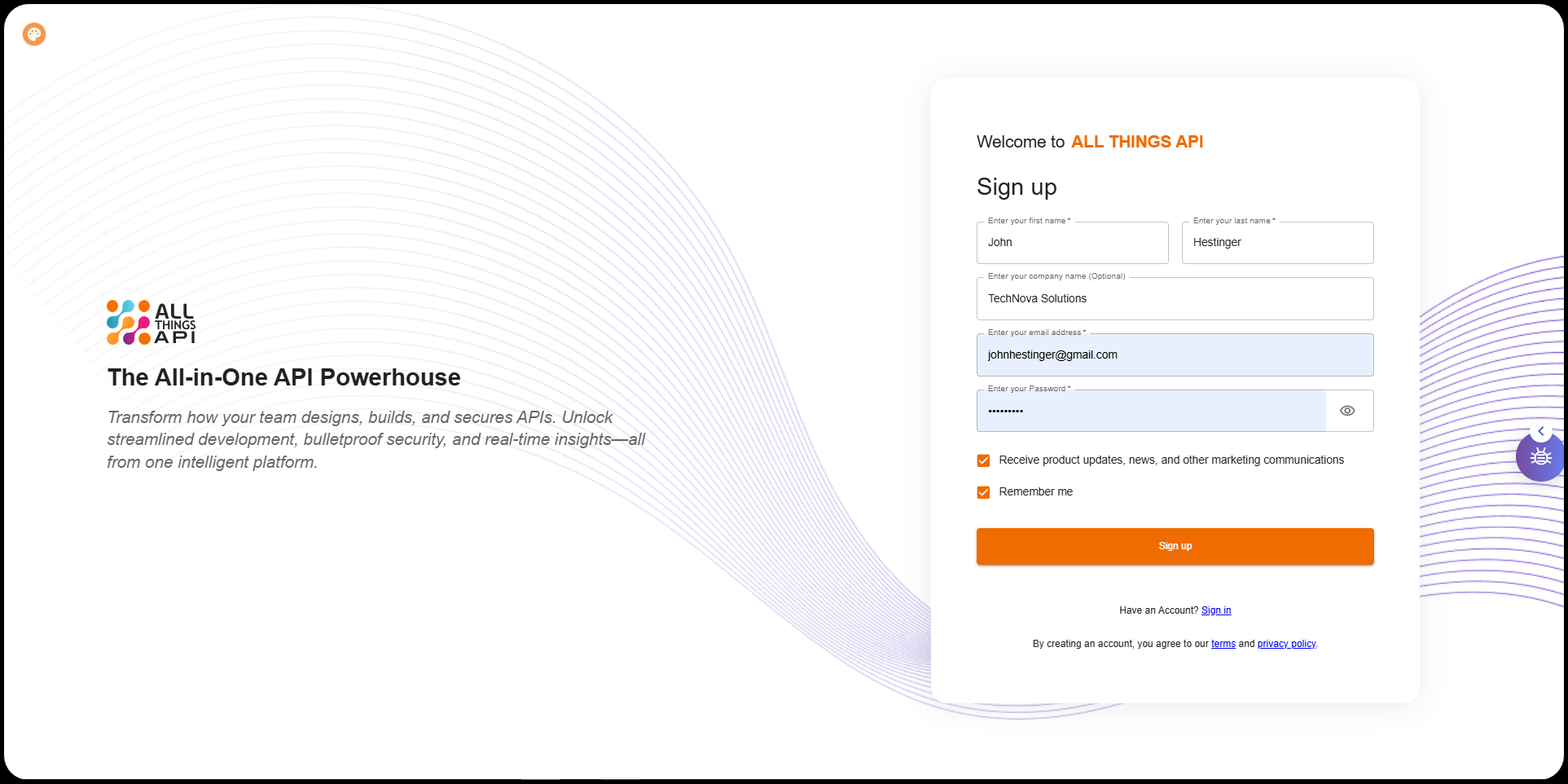
At the registration page, users are asked to provide:
- First Name & Last Name These are used to identify you within your company’s organization and personalize your profile.
- Company Name (Optional) Useful for grouping and organizing team members, especially in larger organizations.
- Email Address This becomes the primary identifier for your ATA account and is used to send verification and communication emails.
- Password A secure password is required. If password rules are enforced (e.g., minimum length, special characters), they will be shown here.
- Receive product updates, news, and other marketing communications This checkbox allows you to opt in to receive periodic product-related emails.
- Remember Me If selected, your session stays active between browser restarts on the same device.
Click Sign Up to proceed.
🔐 Email Verification
Once the registration form is submitted, ATA sends a verification email containing a 6-digit code to the provided address.
You’ll be redirected to the verification page, which includes:
- Email Field Pre-filled and locked to the email used during registration.
- Verification Code Field Enter the 6-digit code from your email here.
After entering the code, your account will be activated and ready for login.
🔑 Signing In to ATA
With your account verified, head to the login page to access the platform.
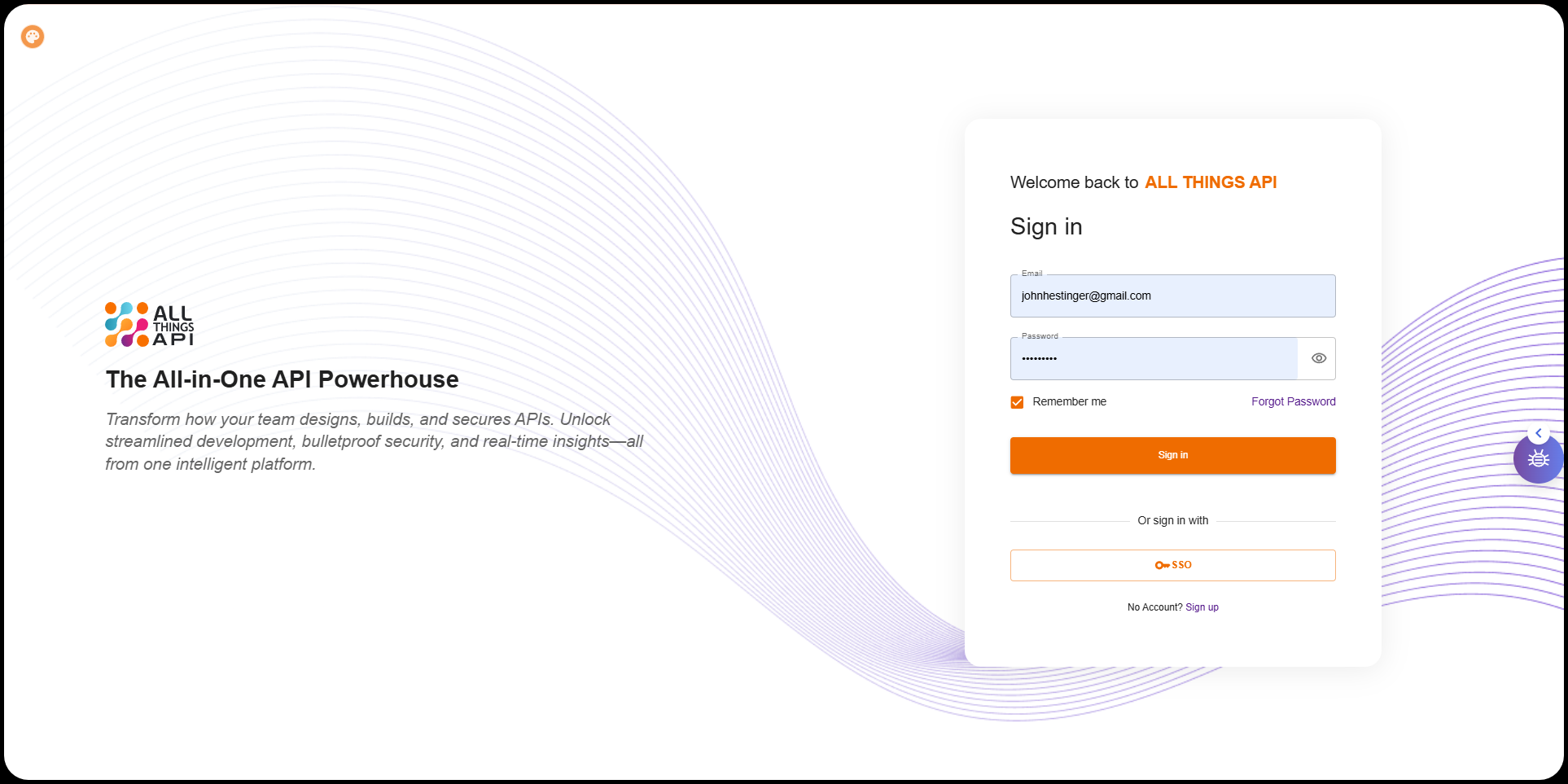
Fields on the Login Page
- Email Enter the same email used during registration.
- Password Enter the password you created.
- Remember Me Keep yourself signed in unless you manually log out.
- Forgot Password? Takes you to the password recovery workflow.
Click Sign In to access the dashboard.
🔁 Forgot Password Process
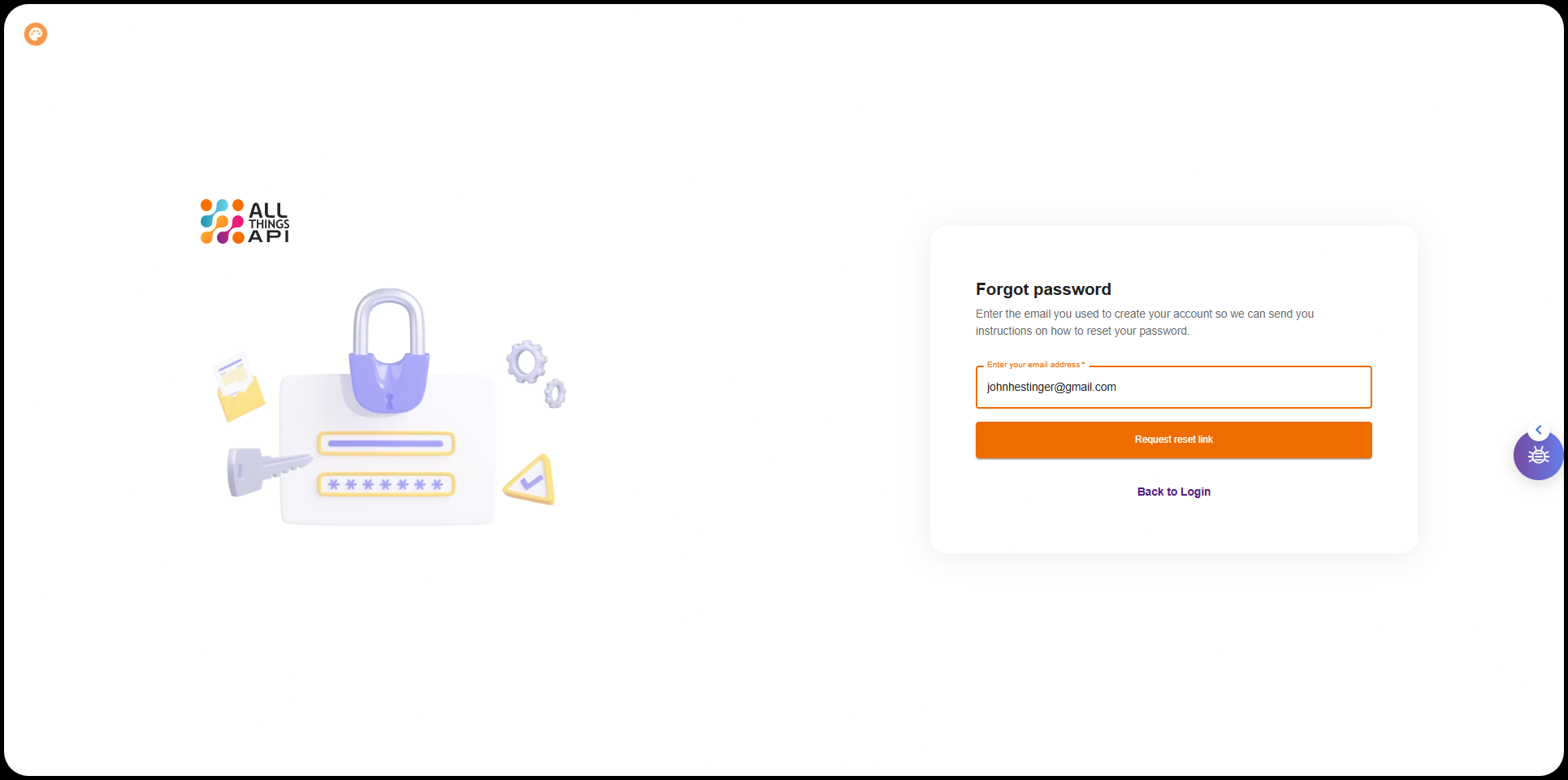
In case you forget your password:
- Click “Forgot password?” on the login page.
- Enter your registered email.
- A verification email will be sent with a Create New Password link.
- Click the link in the email to go to the reset page.
- Enter your new password and confirm it.
- Submit the form.
Return to the sign-in page and log in with your new credentials.
✅ Be Careful!
- Invalid Email: No verification email will arrive.
- Wrong Verification Code: Verification fails with an error message.
- Tab Closed Before Verification: User must revisit the verification link manually.
- Expired Verification Code: User must request a new one.
- Multiple Password Reset Attempts: Only the latest reset link/code is valid.
This completes the initial onboarding flow for ATA users. Once signed in, users can proceed to create or join organizations and start working with APIs.