🔗 Linking APIs to Documentation Pages
All Things API (ATA) allows users to link live API definitions directly to specific documentation pages. This powerful feature bridges the gap between descriptive content and actual API behavior, enhancing clarity, usability, and interactivity.
📌 Feature Overview
The Link APIs feature enables:
- Real-time API previews embedded within documentation pages.
- Schema visibility for request and response bodies.
- Interactive API reference, reducing the need to switch tools or tabs.
- Multiple API endpoints linked to a single page with configurable display options.
🧑💻 Particularly useful for developers, testers, and consumers who want to see exactly how an endpoint works, right where it’s explained.
✅ Use Cases
- Documenting individual API endpoints or feature sets.
- Showing sample responses and payloads inline with written explanations.
- Embedding interactive Swagger-style documentation directly inside the page.
- Creating step-by-step guides where API calls are shown alongside instructions.
🛠️ How to Link APIs to Documentation Pages
1. Navigate to the Target Product Version
- Go to your product list.
- Open the desired Product.
- Click on the Version and then the specific page you want to link APIs to.
2. Open the Page Configuration Menu
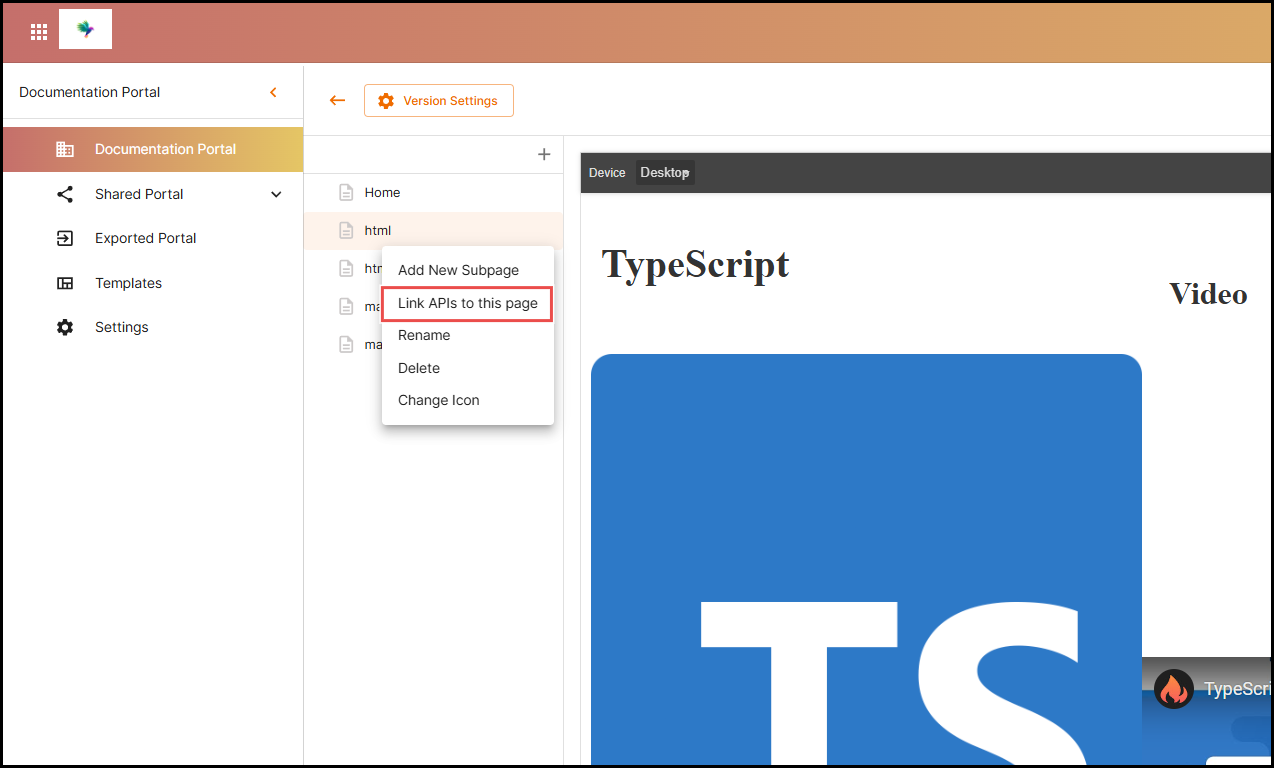
- In the left sidebar, hover over the page name.
- Click the three-dot menu (⋮).
- Select “Link APIs” from the dropdown options.
3. Select APIs to Link
- A dialog box will open showing a list of available APIs from your collections.
- Use search or browse features to find the relevant API endpoints.
- Select one or more APIs to associate with the page.
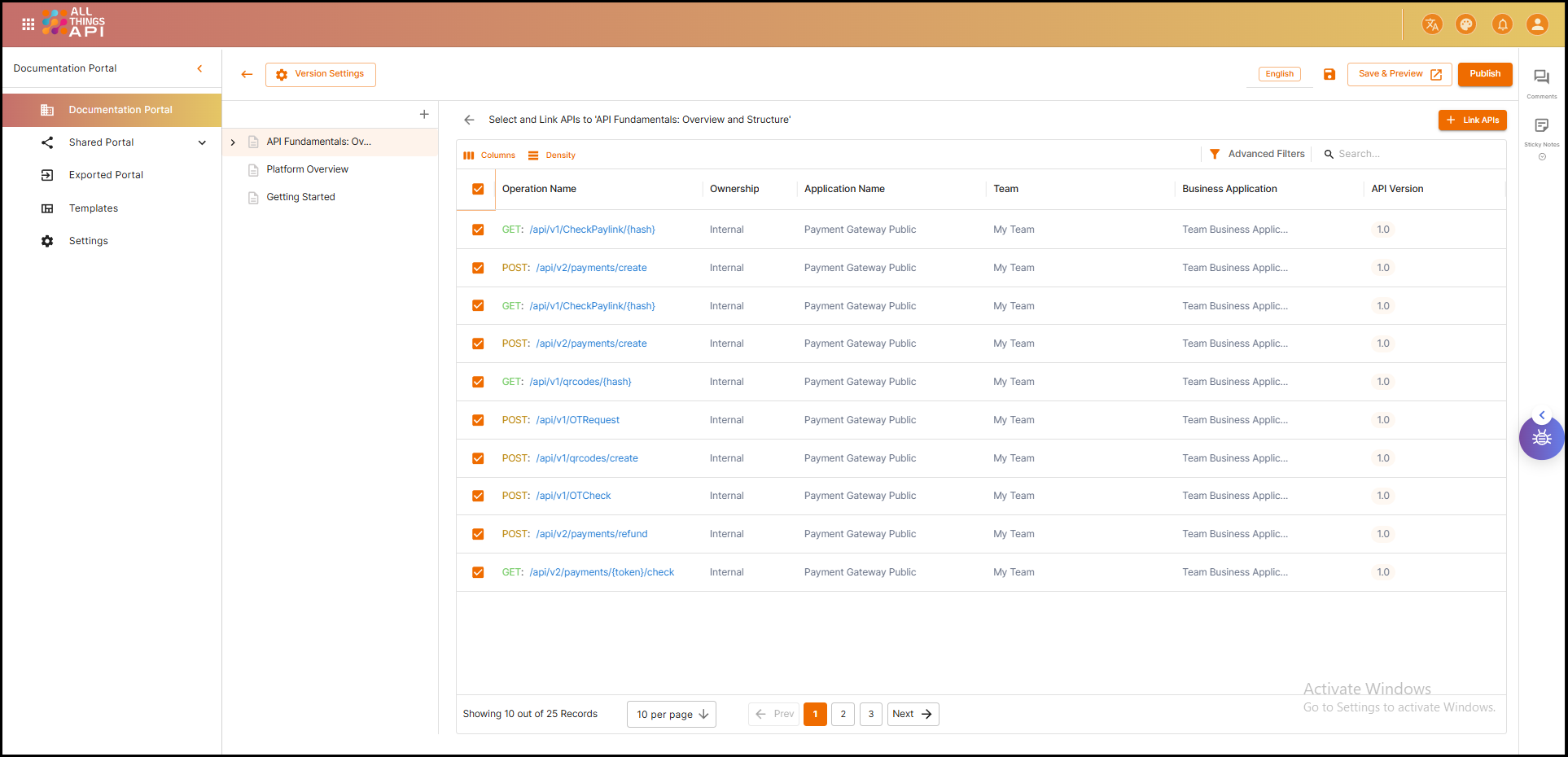
🔁 You can link multiple APIs to a single page — useful for composite features or grouped functionality.
4. Configure Display Mode
ATA provides two API display formats:
- Simplified View
- Minimal interface showing:
- Method (GET, POST, etc.)
- URL/Endpoint
- Parameters
- Minimal interface showing:
- Detailed View
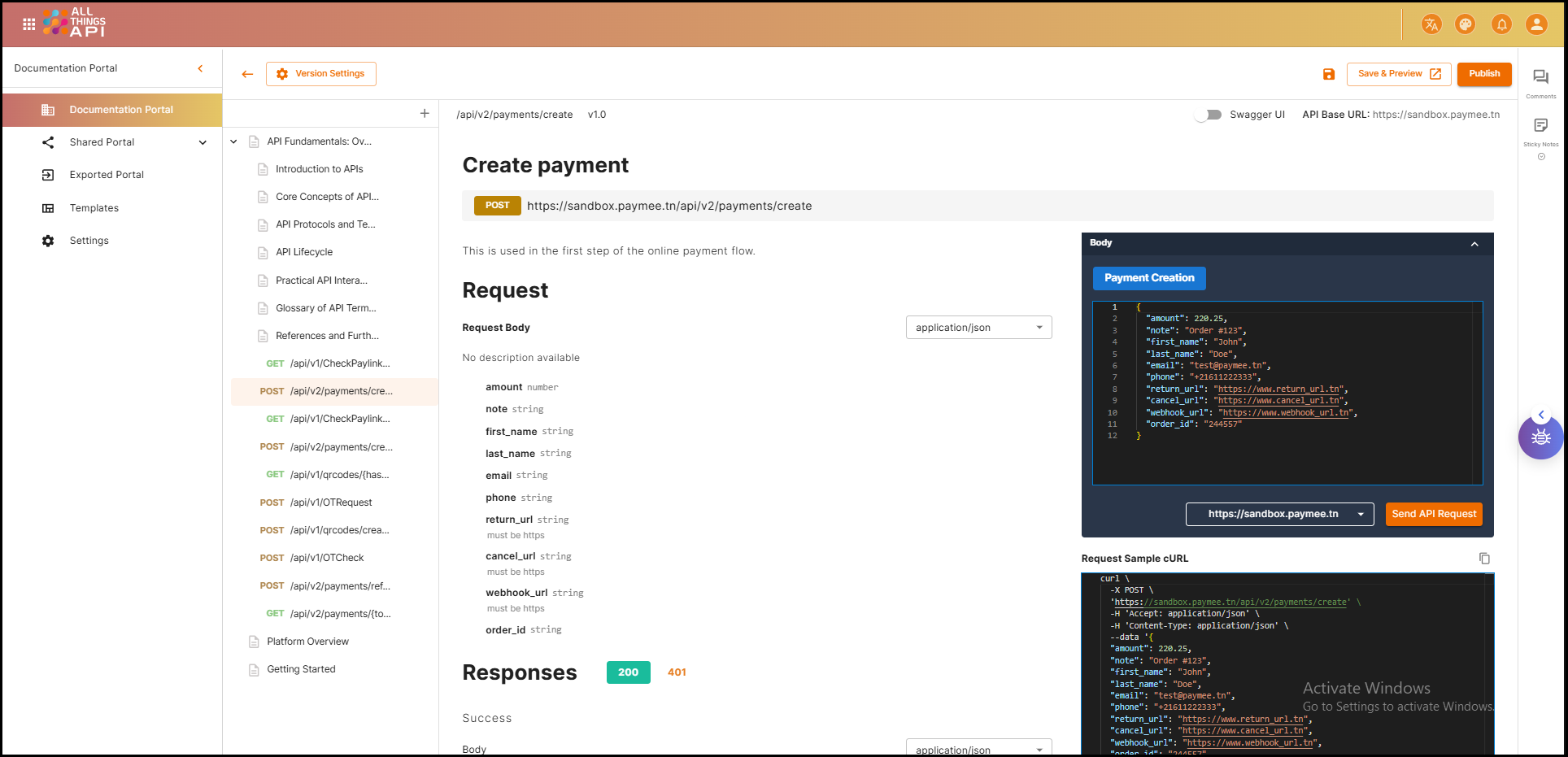
- Full API reference including:
- Headers
- Request/Response schema
- Example payloads
- Try-it-out
- Full API reference including:
5. Save and Preview
- After selecting and configuring the APIs, click Save.
- Use the “Preview” button to see how the linked APIs are rendered on the page.
6. Edit or Unlink APIs
- To make changes:
- Reopen the “Link APIs” menu from the page configuration.
- Add new, reorder, or deselect previously linked APIs.
- Click Save to apply the updates.
🎯 Summary
The Link APIs to Pages feature turns your static documentation into an **interactive, real-time API reference center **. Whether you’re onboarding new developers, writing tutorials, or managing complex API ecosystems, this feature:
- Enhances clarity with live examples.
- Reduces context switching.
- Improves user engagement with hands-on reference material.
🔄 Keeping your API reference close to your descriptive content ensures developers always have the context and tools they need in one place.