🧾 Company Management - Overview
The Company Management section of All Things API (ATA) enables administrators to set up and manage key company-wide settings. This includes company information, domain configurations, language preferences, billing details, and enabling or disabling certain features. Proper configuration of these settings is essential to ensure that the organization’s ATA environment runs smoothly for all users.
Accessing the Company Settings
To begin setting up your organization:
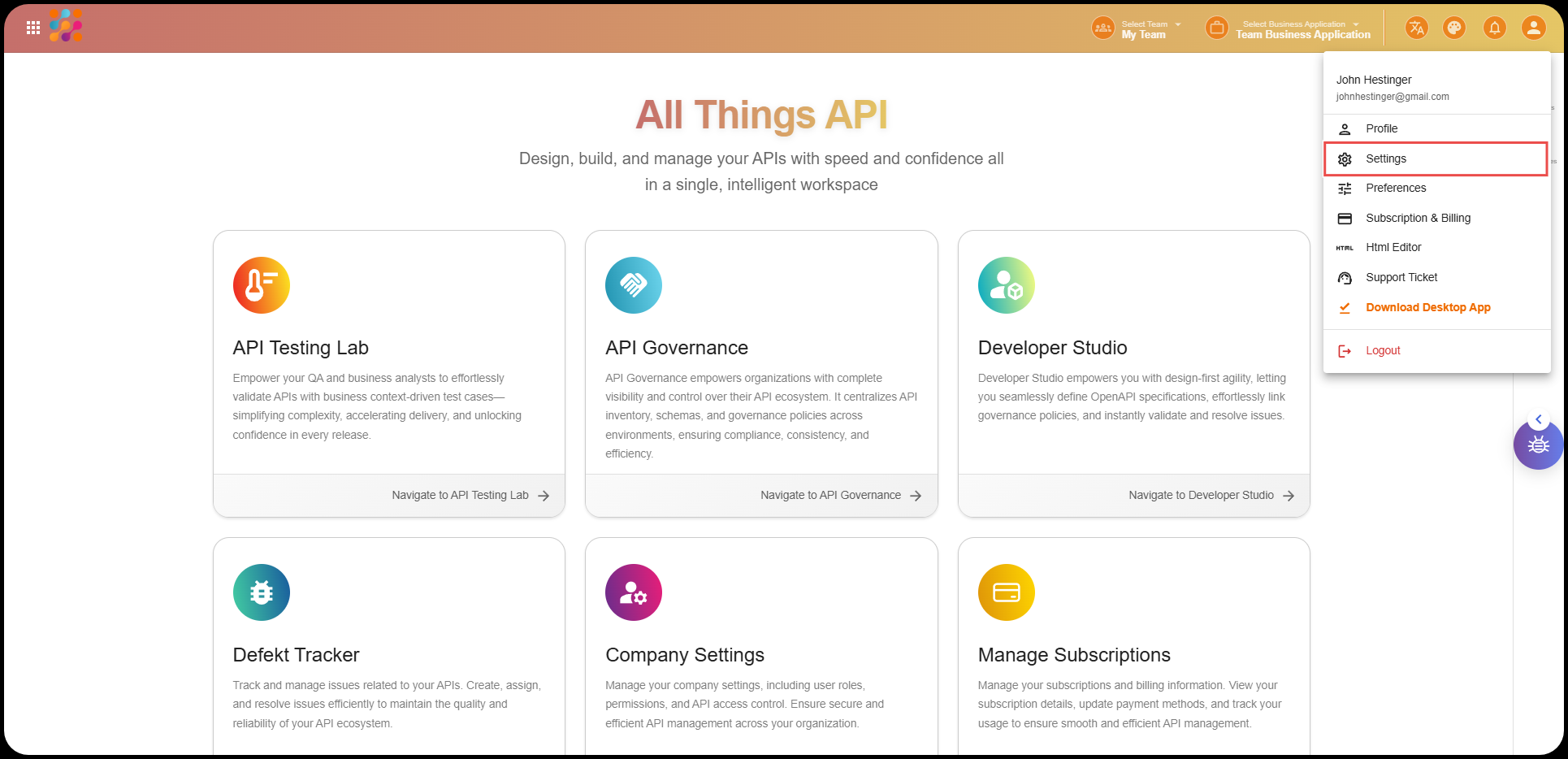
- From the ATA homepage, go to the top-right corner of the screen.
- Click on your profile icon and select Settings from the drop-down menu.
- You will be redirected to the Company Settings Page.
This is where you’ll find everything related to your company’s structure — including organizations, departments, and teams.
🔹 Company Information
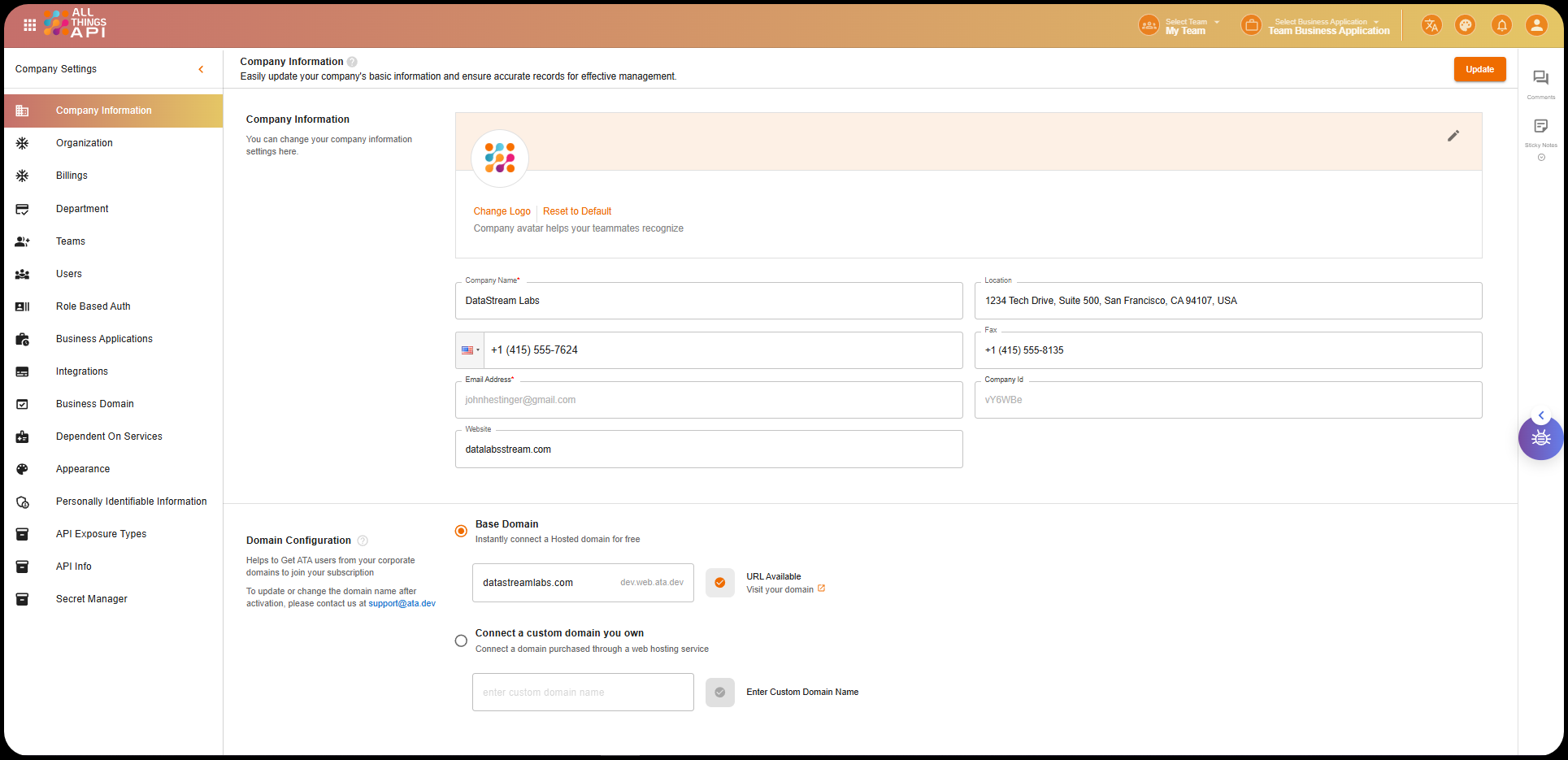
This section allows users to provide essential details about their company. These details are used to personalize and organize the ATA environment.
Fields in Company Information:
- Company Logo Upload the logo of your company. This logo is displayed across various parts of ATA, helping to visually identify your organization. The logo will appear on dashboards, internal communication tools, and any other shared company pages within the ATA environment.
- Company Name Enter the official name of your company. This name will be used throughout ATA and will be displayed in various sections like the organization settings and user profiles.
- Location Specify the location of your company, including the city, state, and country. This is helpful for identifying the geographical context of your organization, particularly when managing teams across different regions.
- Contact Number This field allows you to add your company’s main contact number. This number will be used for any communication or support-related inquiries. It’s a key piece of information if your company is contacted by external parties or customers.
- Fax Number If your company uses a fax machine, you can add the fax number here. Though faxing is less common in modern business practices, some organizations may still require this.
- Company Email This email is typically used for general inquiries or support purposes. It’s an important piece of contact information and will be shown across various ATA modules.
- Website Provide the official website URL for your company. This website link is used for any communications related to your company’s digital presence.
- Company ID The Company ID is automatically generated by ATA and used when collaborating with other organizations. This ID helps distinguish between different companies and is crucial for managing integrations, especially when interacting with external platforms.
🔹 Domain Configuration
This section allows you to configure the domain settings for your company’s ATA environment. You can either connect a hosted domain or a custom domain, depending on your needs.
Domain Configuration Options:
- Base Domain If you don’t already own a domain, you can instantly connect a free hosted domain provided by ATA. This is ideal for small companies or teams that don’t want to set up a custom domain at first. ATA will handle all domain-related services.
- Custom Domain If your organization already owns a domain, you can connect it to ATA. This helps maintain your company’s branding and ensures that the platform’s URL is consistent with your company’s existing infrastructure.
- Purchased Domain through Web Hosting For companies that have purchased a domain through a web hosting service, this option allows you to connect the purchased domain to ATA, enabling a more personalized and seamless experience for your users.
🔹 Company Preferences
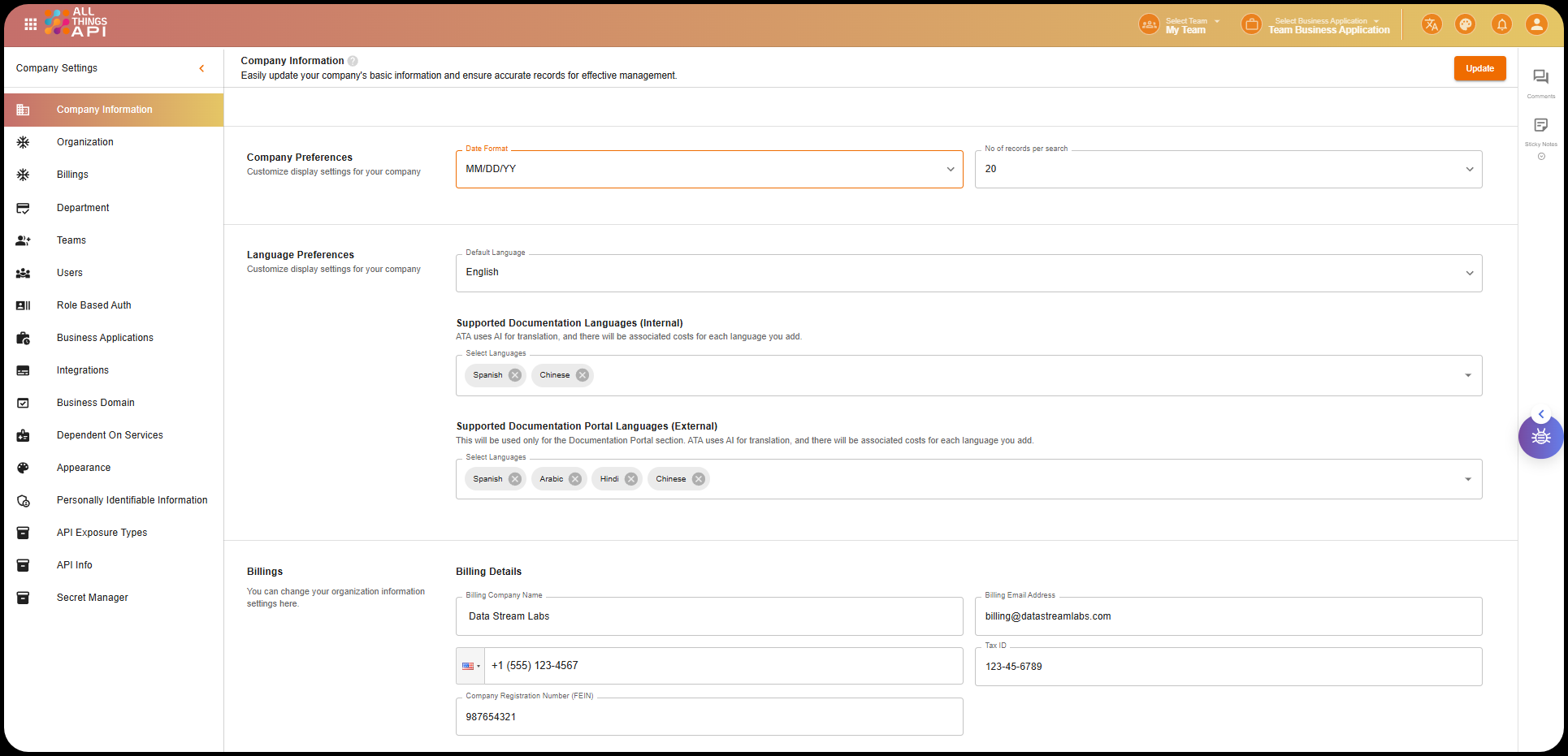
The company preferences section allows you to customize key settings for date formats and search behavior across your ATA environment. These settings affect how information is displayed throughout the software.
Preferences Options:
- Date Format Here, you can choose the preferred date format that should be applied throughout ATA. For example, some companies use MM/DD/YYYY, while others prefer DD/MM/YYYY. This setting ensures consistency across all date fields, reducing confusion when working with date-sensitive data.
- Records per Search You can control how many records are shown per search query. This is useful for managing how data is displayed on the screen, especially when dealing with large datasets. Increasing the number of records per search may improve efficiency for power users who need to view more results at once, while a smaller number may improve performance for users with slower internet connections.
Both of these settings are easily adjustable using dropdowns and datepickers, making them user-friendly.
🔹 Language Preferences
This section allows you to set the language preferences for your ATA environment. You can configure the default language for the system interface and select languages for both internal and external documentation. ATA uses AI to help translate documents and content, but keep in mind that this may incur additional costs.
Language Options:
- Default Language Select the default language for your organization’s ATA interface. This is the language that will be used across all user interfaces, including dashboards and settings pages. The default language helps ensure that your team can interact with the software in the language they are most comfortable with.
- Supported Documentation Languages (Internal) ATA provides AI-powered translations for internal documentation. You can choose from a list of supported languages, such as Spanish, Hindi, Arabic, and Chinese. Adding languages to internal documentation helps teams who speak different languages work together more effectively. However, there are associated costs for each additional language added to your internal documentation.
- Supported Documentation Portal Languages (External) This setting allows you to choose languages for the external documentation portal. This portal is typically used by clients or external users, so providing multilingual support ensures better accessibility for your audience. As with internal documentation, additional costs may apply for each language added.
Languages available for both internal and external documentation include:
- Spanish
- Hindi
- Arabic
- Chinese
These language preferences are controlled using simple dropdowns, making it easy to select the appropriate options.
🔹 Billing Details
This section contains all the information needed for billing and tax purposes. Accurate billing details ensure that you are correctly invoiced for the services ATA provides.
Billing Details Fields:
- Billing Company Name The name of your company as it appears on invoices and other financial documents. This should match the official name registered with your billing provider.
- Billing Email Address A dedicated email address for all billing-related inquiries and communication. This ensures that the right team members are notified of any billing updates or issues.
- Billing Phone Number The primary phone number for billing inquiries. This number should be monitored for calls related to payments, invoices, or tax matters.
- Tax ID The tax identification number for your company. This is important for reporting and tax purposes, especially if your company operates in multiple regions with varying tax regulations.
- Company Registration Number (FEIN) The Federal Employer Identification Number (FEIN) used for tax filings. This number is required for tax reporting and may also be used when setting up other integrations.
- Billing Address Your company’s billing address, which includes:
- Address Line 1: 456 Tech Avenue
- Address Line 2: Suite 789
- City: Silicon Valley
- State: California
- Zip Code: 94043
- Country: United States
🔹 Enable/Disable Features
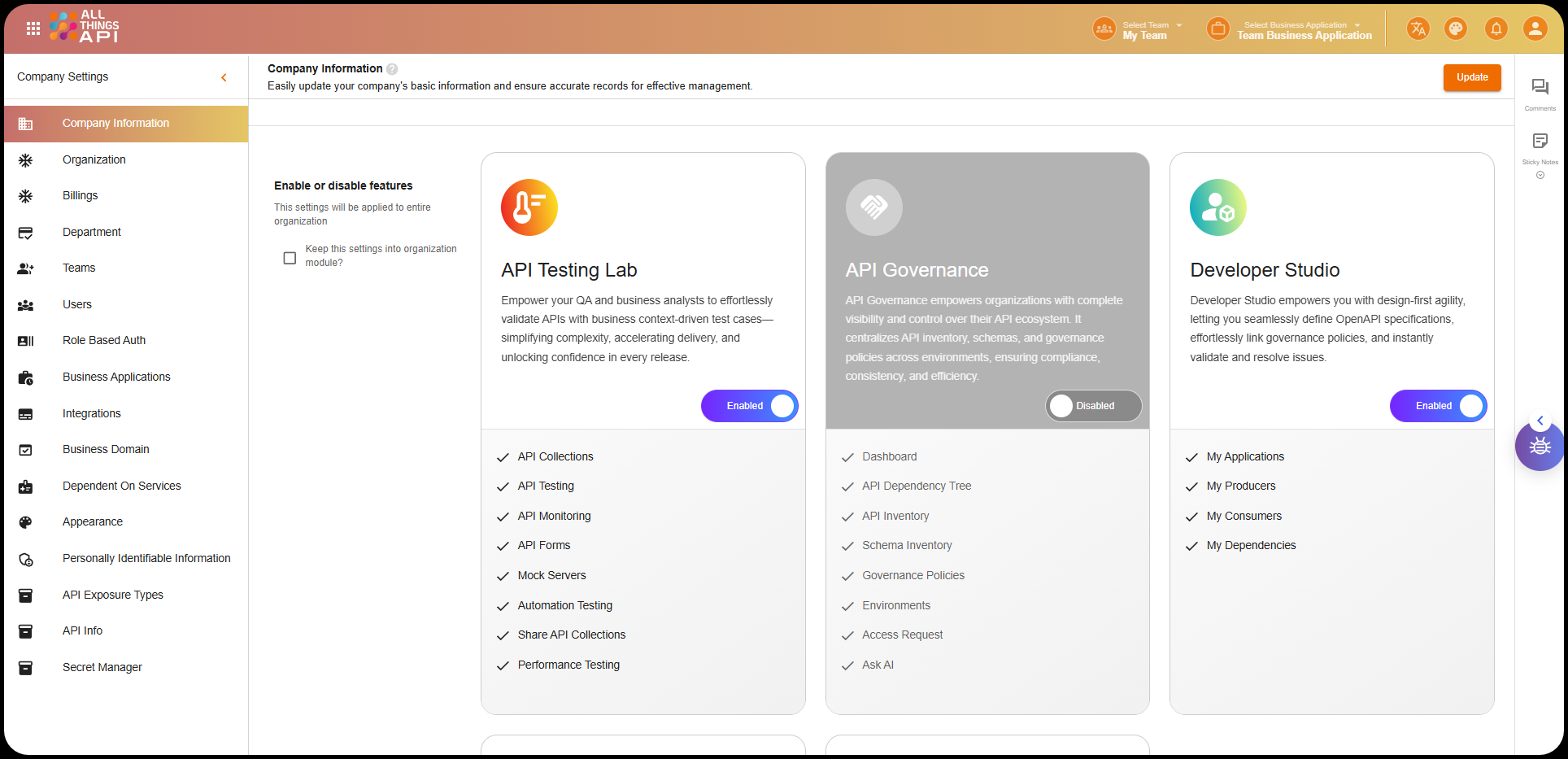
This setting allows administrators to control which features are available within the ATA environment for the entire organization. Features can be enabled or disabled based on your team’s needs, ensuring that only the necessary tools are accessible.
Available Features:
- API Testing Lab Enable or disable the API Testing Lab, a feature that allows developers to test APIs in a sandbox environment. If this feature is disabled, your team won’t be able to access the testing tools within ATA.
- API Governance Toggle the API Governance feature, which helps manage API policies and ensure compliance. Disabling this feature will limit the ability to enforce governance rules across your APIs.
- Developer Studio Control the availability of the Developer Studio, a set of tools that helps developers build and maintain APIs. Disabling this feature will remove access to critical development tools.
- Documentation Portal Enable or disable the Documentation Portal, which provides access to the company’s API documentation. If disabled, your team will not be able to access or manage the documentation portal.
When any of these features are disabled, they will no longer be visible in the software, reducing clutter for your users.
⚠️ Be Careful
- Domain Connection Errors If you connect an incorrect or non-owned domain, ATA may fail to authenticate the connection, leading to issues with access and branding.
- Language Costs Adding extra languages for both internal and external documentation incurs costs. Be mindful of the associated charges before enabling additional languages.
- Disabling Features Accidentally Accidentally disabling core features like the Developer Studio or API Testing Lab could severely impact the productivity of your team. Always double-check before turning off essential tools.
- Incomplete Billing Information Failing to fill in complete billing details (e.g., missing Tax ID or company registration number) could delay invoices, tax filings, or result in errors during payment processing.
This completes the Company Management section, which includes configuring company details, language preferences, domain settings, billing, and feature management. Once set up, your ATA environment is ready for seamless collaboration and API management.