📚 Managing Pages and Documentation Structure
In All Things API (ATA), pages form the foundational content units of a documentation version. The portal offers powerful tools to create, organize, customize, and manage these pages, ensuring your documentation remains comprehensive, modular, and navigable.
Each version of a product can have multiple pages grouped logically using tabs and subpages, enabling easy access to complex sets of information like API references, tutorials, changelogs, and guides.
📝 Feature Overview: Page Management
- Pages are core units within a version, each covering a specific feature, concept, module, or API endpoint.
- Pages can be:
- Created, renamed, deleted
- Grouped under tabs and subpages for hierarchical navigation
- Linked to API endpoints
- Translated into multiple languages
- Styled with icons and visual customization
ATA supports multiple editor modes to cater to both technical and non-technical contributors:
- Markup Editor (Markdown or HTML/CSS)
- Designer Editor (Drag-and-drop interface)
- External Link (For redirecting users to an external page)
How to Manage Pages
1. Open a Product Version
- Navigate to the product from your dashboard.
- Open the version you want to edit.
2. Add a New Page
- Click the “+” button at the top of the page list.
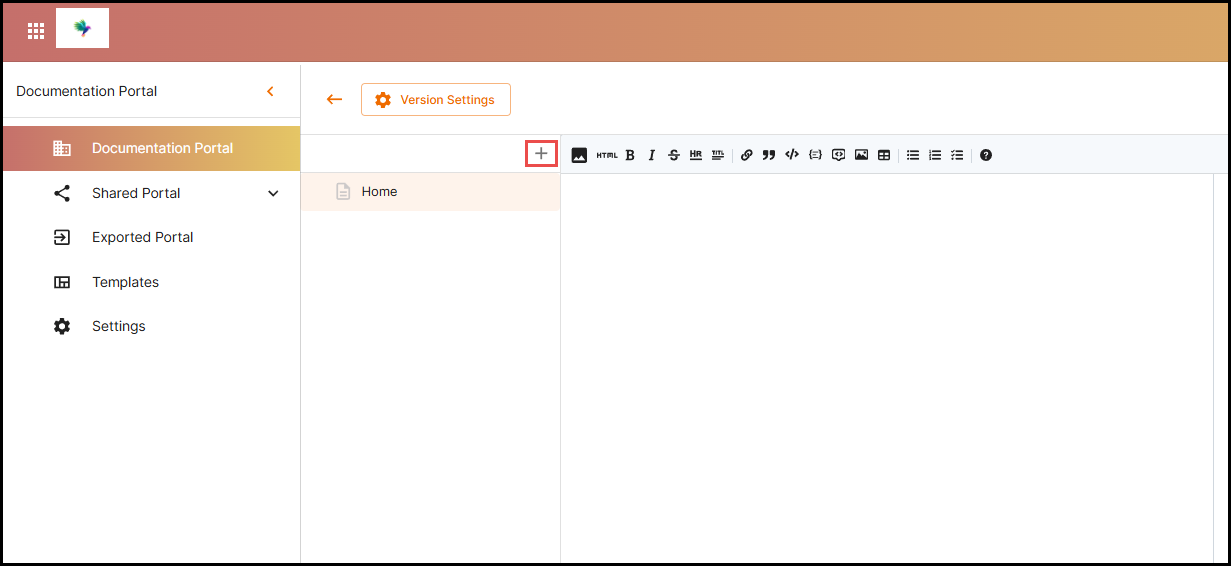
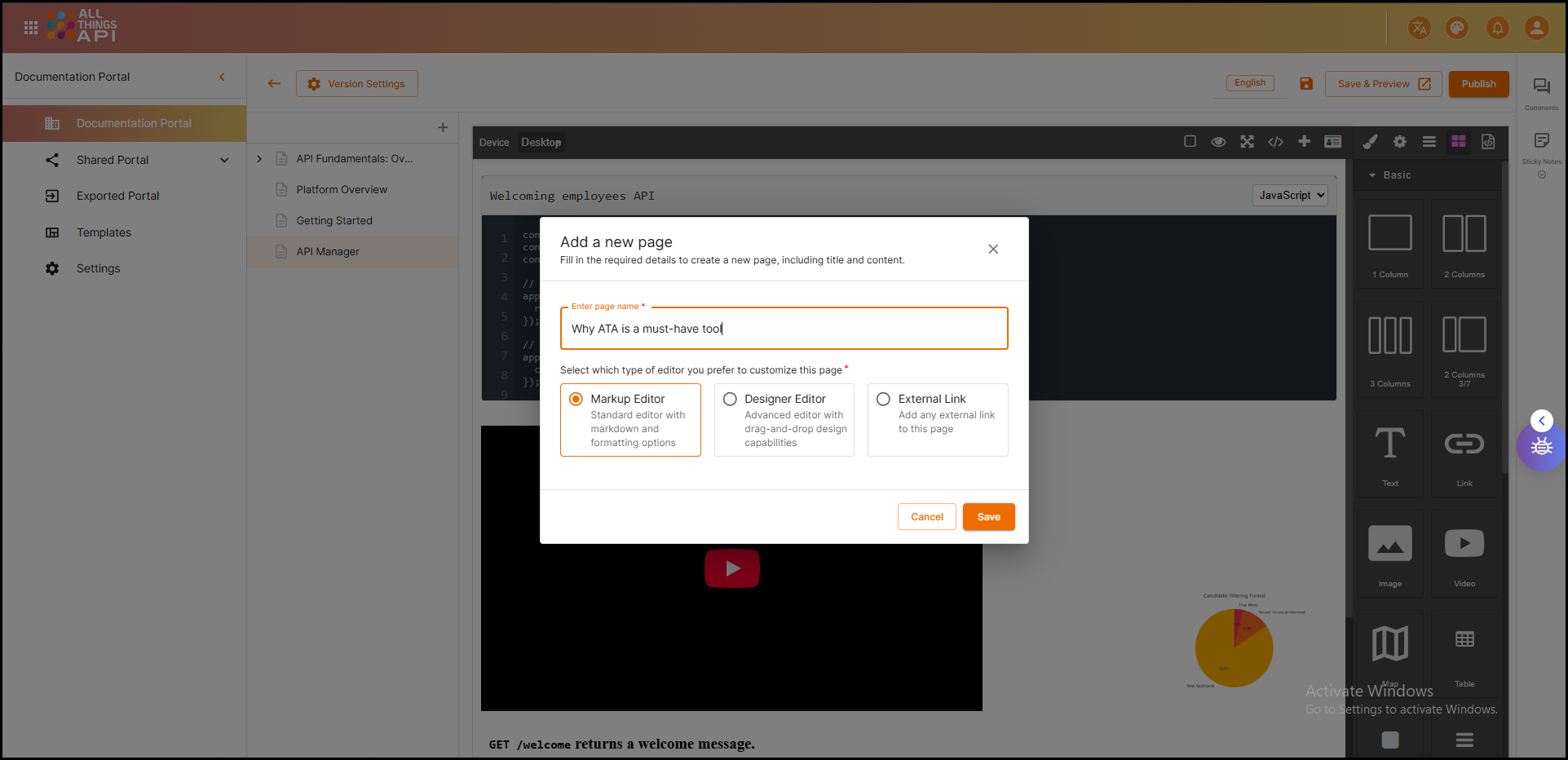
- A form will appear asking for:
- Page Name
- Page Type: Choose from:
- Markup Editor
- Designer Editor
- External Link
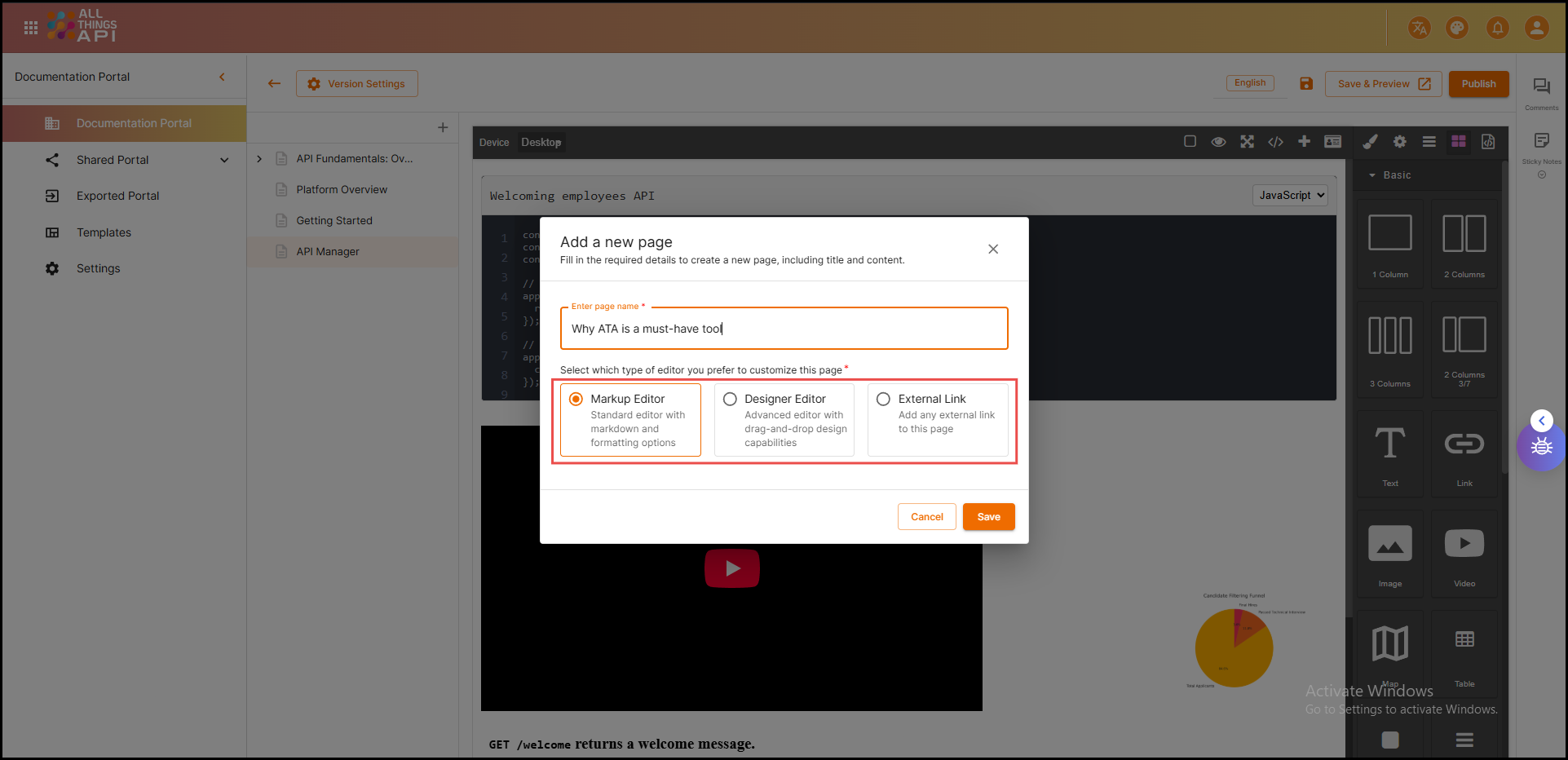
3. Choose an Editor
- Markup Editor: Write documentation using Markdown or HTML. Ideal for developers and technical writers.
- Designer Editor:
Use drag-and-drop blocks like:
- Text, images, videos
- Buttons, code preview, maps
- Tables, dividers, cards
- External Link: Configure this page to redirect users to another URL (internal or external).
4. Customize Page Content
- Use rich text formatting, code blocks, and inline elements in the Markup Editor.
- Use the visual layout blocks in Designer Editor.
- Enter and validate external URLs when using link-based pages.
5. Organize Your Pages
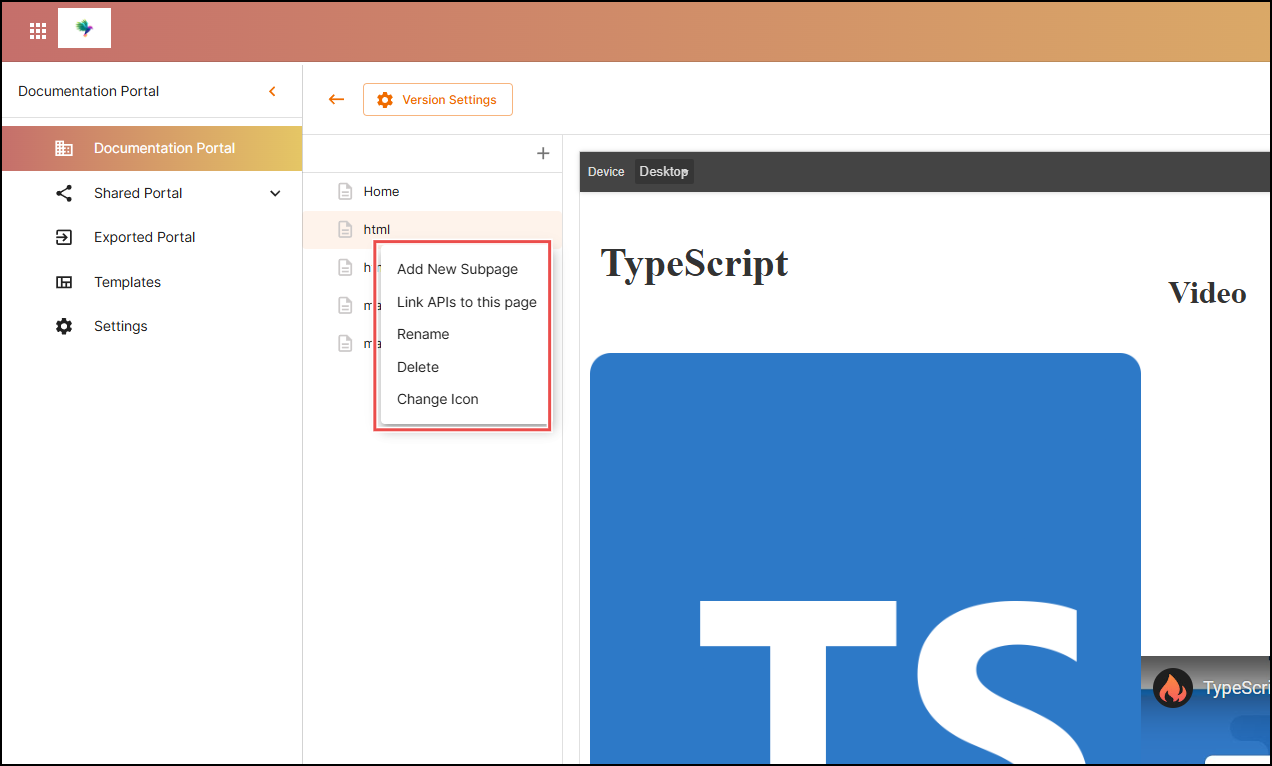
Hover over any page to reveal a three-dot menu with management options:
- Rename: Change the page title.
- Delete: Permanently remove the page.
- Add Subpage: Create a hierarchical child page.
- Change Icon: Assign a visual icon to represent the page in the sidebar or top navigation.
- Link APIs:
- Associate specific API endpoints with the page.
- Viewable as Swagger-style documentation or simplified API response examples.
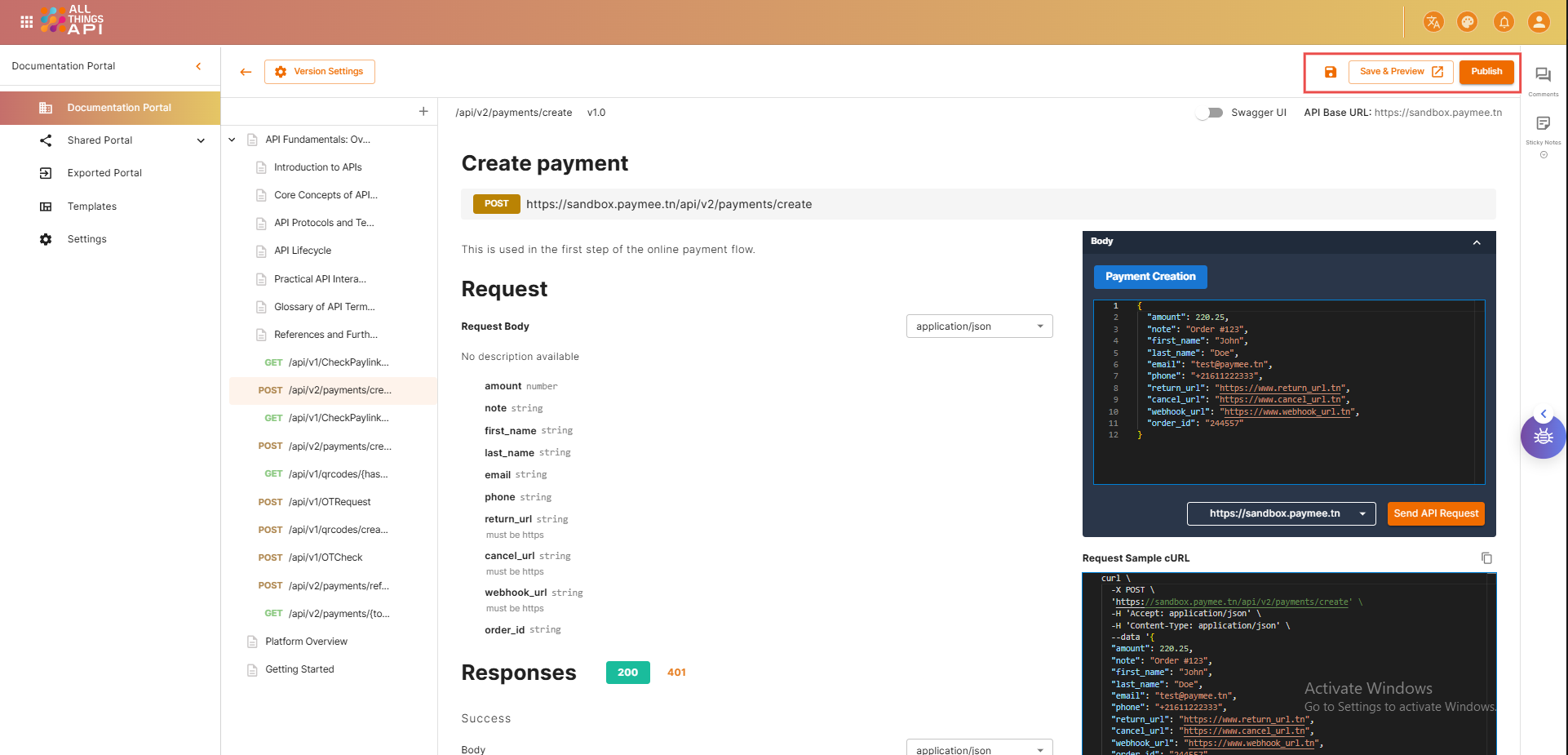
6. Save and Preview
Once changes are made, choose your save action:
- Save: Commit changes and stay on the editing page.
- Save & Preview: View the updated version in a preview tab.
- Publish: Make the page and all its updates live in the published documentation.
✅ Summary
The Managing Pages and Documentation Structure feature in ATA gives you full control over your documentation hierarchy and lifecycle. From creating dynamic, multilingual content pages to exporting entire documentation snapshots, ATA enables teams to scale and evolve their documentation with ease, precision, and flexibility.
- Easily maintain nested page hierarchies
- Support multiple documentation styles via different editors
- Customize appearance and link to API endpoints