🧾 API Exposure Types & Secret Manager in ATA
In All Things API (ATA), managing API Exposure Types and handling secrets are crucial parts of securing your API environment and streamlining integration with external systems. This documentation explains how to manage API Exposure Types and Secret Manager, along with the steps required for configuring them.
🔹 API Exposure Types
API Exposure Types help you categorize and manage how your APIs are exposed to external systems or applications. You can create new exposure types, such as External, Internal, Third-Party, and others, to better organize your APIs and streamline your workflow.
Why Use API Exposure Types?
- External Exposure: Makes your APIs available to external users or systems.
- Internal Exposure: Restricts API access to within the organization.
- Third-Party Exposure: Allows specific third-party systems to access certain APIs.
- Partner Exposure: Provides limited access to API resources to trusted partners.
Steps to Add an API Exposure Type:
- Go to Company Settings: From the ATA homepage, navigate to Company Settings.
- Navigate to API Exposure Types: In the sidebar, click on API Exposure Types.
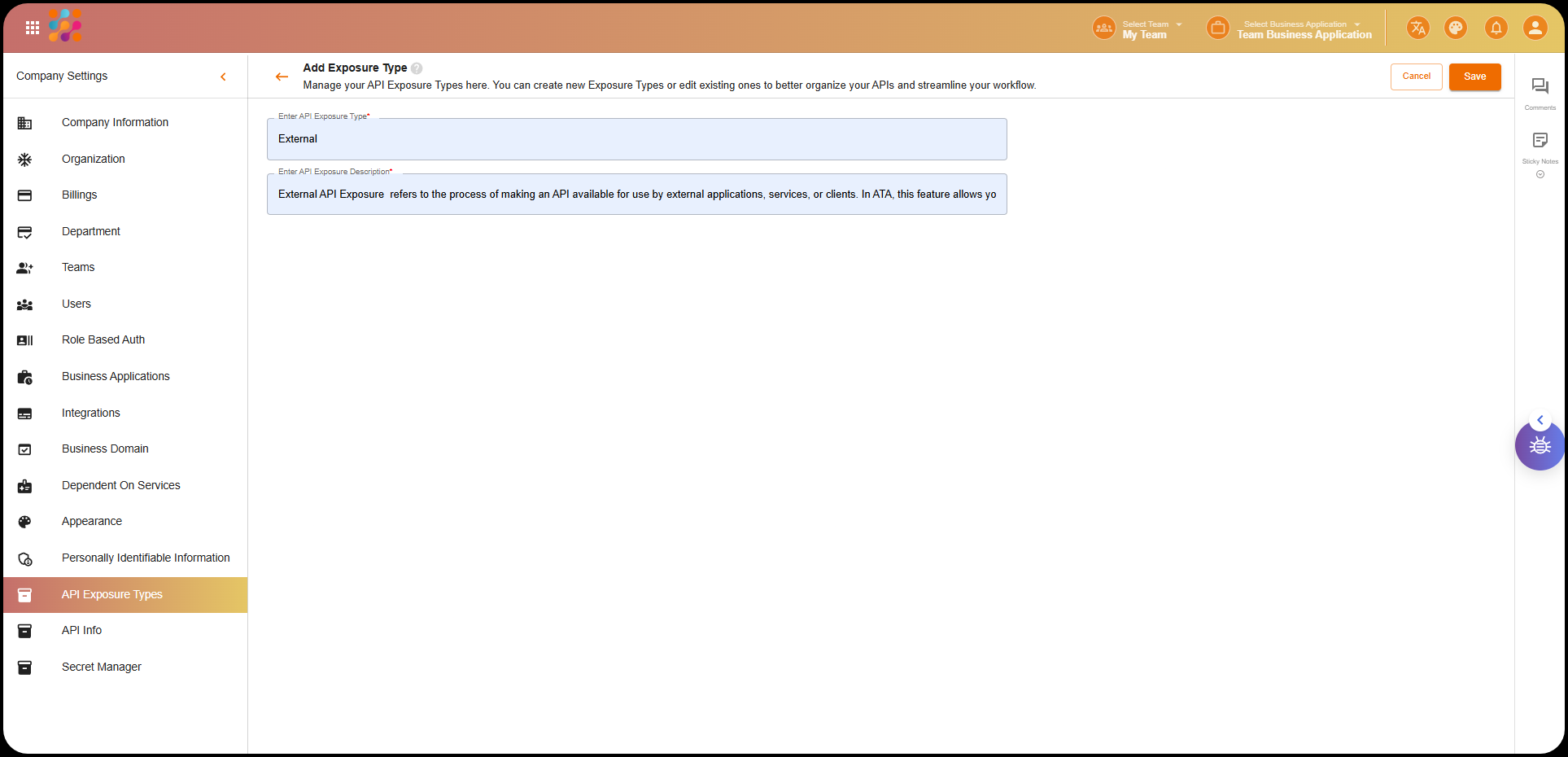
- Add a New Exposure Type: Click the Add Exposure Type button.
- Enter the Exposure Type Name:
Enter a descriptive name for the exposure type (e.g.,
External,Internal). - Provide a Description: Enter a detailed description for the exposure type. For example, for External, you can describe it as follows:
External API Exposure refers to the process of making an API available for use by external applications, services, or clients. In ATA, this feature allows you to expose internal APIs securely to external users.`
- Click Save: After entering the details, click Save to add the exposure type.
Managing API Exposure Types List:
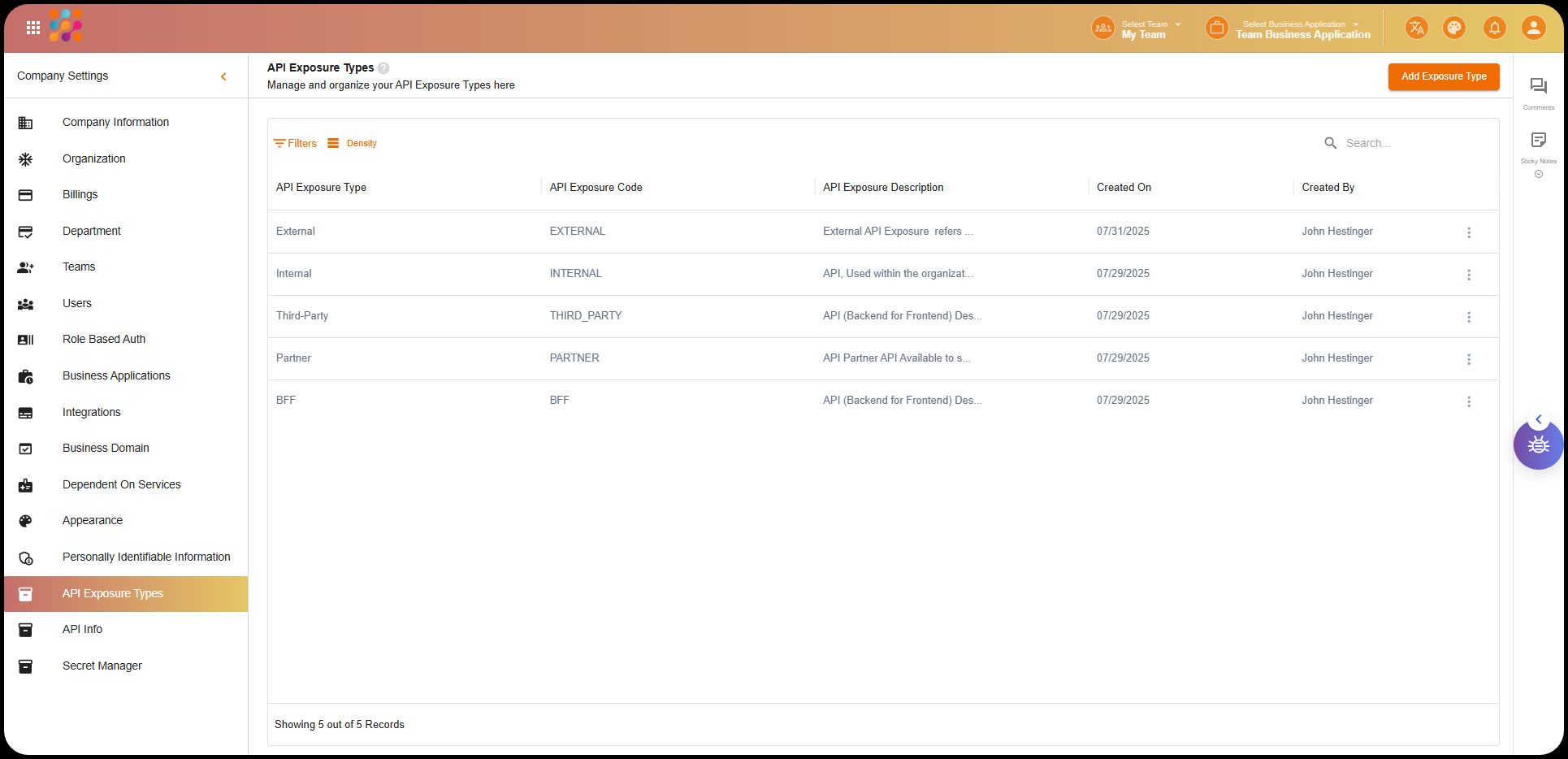
The API Exposure Types page will display all the types you’ve created. You can manage them here, with the following details visible:
- Exposure Type: Name of the exposure type (e.g., External, Internal).
- Exposure Code: A unique code assigned to each exposure type.
- Description: A short description of the exposure type.
- Created On: The date when the exposure type was created.
- Created By: The person who created the exposure type.
🔹 API Info
The API Info section in ATA allows you to manage your API credentials that are used to securely access and integrate with your API services. This section enables you to store API Client IDs and Client Secrets, which are necessary for authenticating and connecting external applications with your API.
Why Use API Info?
- Secure API Access: Store API credentials such as Client ID and Client Secret securely.
- API Integration: Use the stored credentials to connect with third-party applications and services.
- Token Management: Manage access tokens and other sensitive data for external integrations.
Steps to Access API Credentials:
- Go to Company Settings: Navigate to Company Settings on the ATA dashboard.
- Navigate to API Info: In the sidebar, click on API Info.
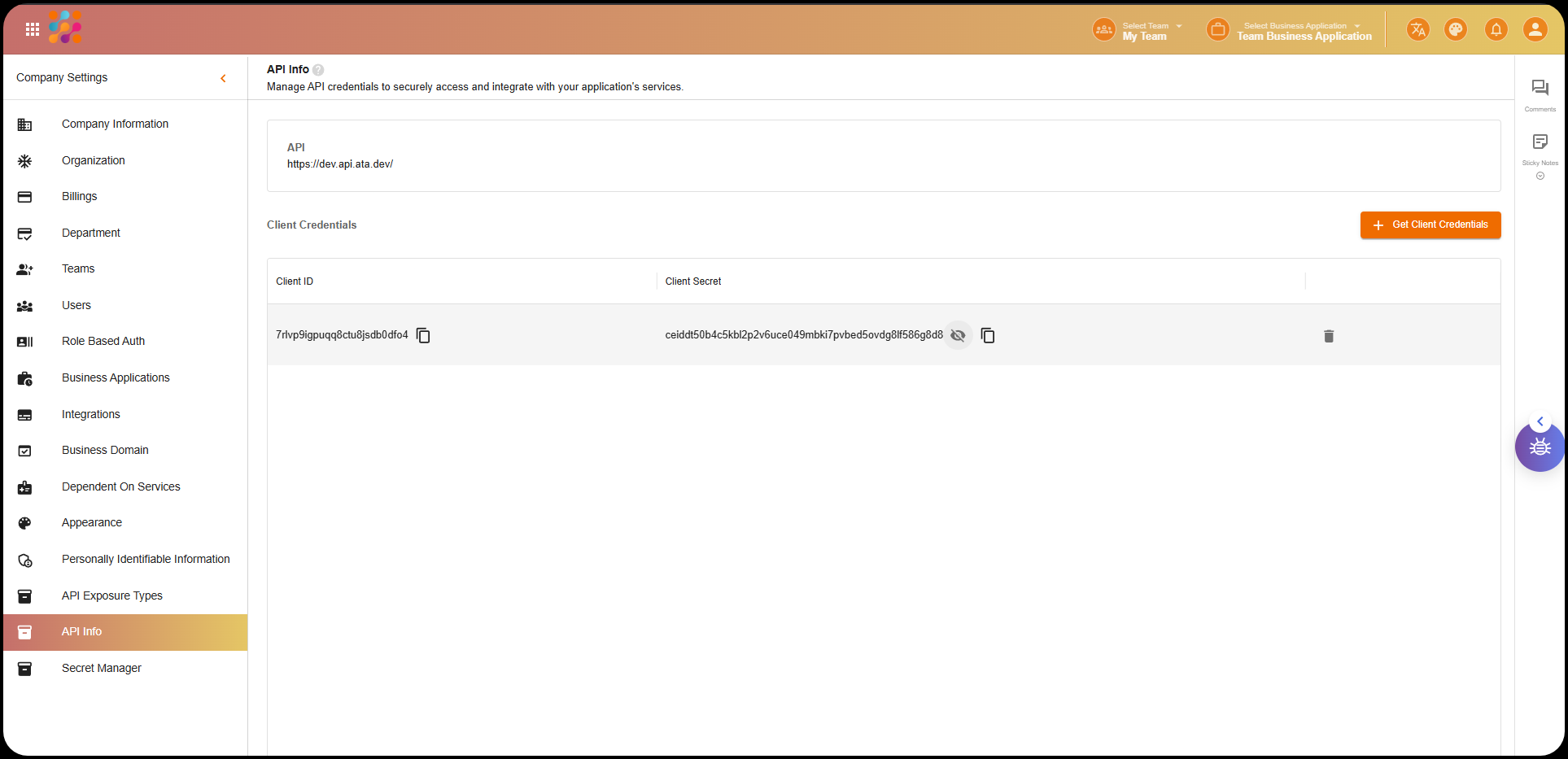
- View API Credentials: The API Info page displays the Client ID and Client Secret. These credentials are used to authenticate API calls.
- Get Client Credentials: Click on the Get Client Credentials button to generate new credentials if needed. You will be provided with a Client ID and Client Secret.
- Manage Credentials: You can view, copy, or delete the generated credentials from this page.
🔹 Secret Manager
Secret Manager is a feature that allows you to securely store and manage sensitive information like API keys, database credentials, and other secrets associated with your team. This ensures that secrets are stored securely and can be accessed when needed.
Why Use Secret Manager?
- Security: Store sensitive data securely and control access to it.
- Centralized Management: Manage all team secrets in one place, making it easier to track and use them.
- Access Control: Define which teams or roles have access to specific secrets.
Steps to Manage Secrets:
- Go to Company Settings: Navigate to Company Settings on ATA.
- Navigate to Secret Manager: In the sidebar, click on Secret Manager.
- Add a New Secret Manager: Click the Add Secret Manager button.
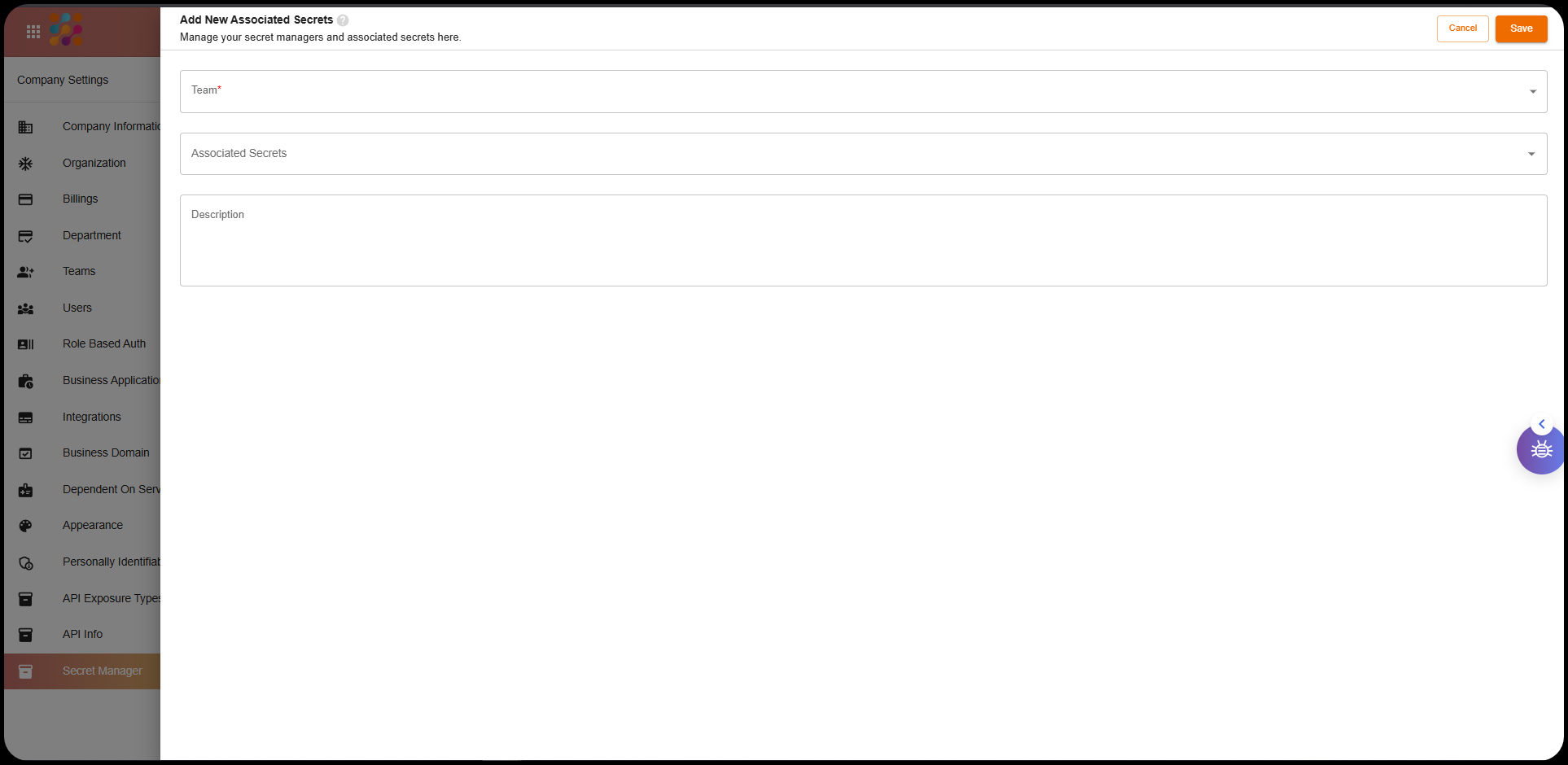
- Add Associated Secrets:
- Select the Team that the secret will be associated with.
- Enter the Associated Secrets (e.g., API keys, passwords).
- Provide a Description for each secret to ensure that its use is clear.
- Click Save: After entering the details, click Save to store the secret.
Managing Secret Manager List:
The Secret Manager page will list all the secrets that have been added, with the following details:
- Team Name: The team associated with the secret.
- Associated Secrets: The secrets linked to that team.
- Created On: The date the secret was added.
- Last Updated On: The date the secret was last updated.
- Added By: The person who added the secret.
Summary
In ATA, the API Exposure Types and Secret Manager features provide robust control over how your APIs are exposed to external systems and how sensitive information is stored securely. By using API Exposure Types, you can manage how your APIs are shared with external partners, while Secret Manager ensures that sensitive data is protected and accessible only to authorized teams.
By properly configuring these features, you can maintain secure and efficient workflows for your team and external collaborators.